This article is a guide on code installation around Fandom.
CSS imports on Fandom
On Fandom, the CSS @import can efficiently import a collection of stylesheets to:
- minify them and increase performance
- look cleaner
- cache consistently
Consider the examples below.
Examples of @import usage
On the left there is an example of several imports using the classic @import rule. On the right is how you can merge them in a single command, which will minify them, thus increasing performance:
- Multiple imports — messy and slow
-
@import url("/index.php?title=MediaWiki:LocalCSS1.css&action=raw&ctype=text/css");
@import url("/index.php?title=MediaWiki:LocalCSS2.css&action=raw&ctype=text/css");
@import url("https://dev.fandom.com/index.php?title=MediaWiki:InterWikiCSS.css&action=raw&ctype=text/css");
/* CSS */
- One import — clean and efficient
-
@import url("/load.php?mode=articles&only=styles&articles=MediaWiki:LocalCSS1.css|MediaWiki:LocalCSS2.css|u:dev:MediaWiki:InterWikiCSS.css");
/* CSS */
Note: That, however, would not work well for some stylesheets which import other stylesheets in their turn. Those "parent" stylesheets may break if combined with other stylesheets in the same @import statement.
Placement of CSS @import rules
CSS imports rules must be stated at the beginning of the page, before any other rule. Otherwise they won't work. Here's an example of the correct placement:
- Wrong placement
-
/* CSS */
@import url("/load.php?mode=articles&only=styles&articles=MediaWiki:LocalCSS1.css|MediaWiki:LocalCSS2.css|u:dev:MediaWiki:InterWikiCSS.css");
- Correct placement
-
@import url("/load.php?mode=articles&only=styles&articles=MediaWiki:LocalCSS1.css|MediaWiki:LocalCSS2.css|u:dev:MediaWiki:InterWikiCSS.css");
/* CSS */
It's also possible to import CSS using JavaScript pages through importArticles (read more).
JavaScript imports on Fandom
The importArticles statement is designed to efficiently batch import scripts:
- to speed up performance,
- make your code look cleaner,
- combine multiple HTTP requests into a single data transfer,
- and allow multiple scripts to load and execute faster
If you've been installing several different scripts, your JavaScript file has probably accumulated unnecessary import statements.
Examples of importArticles usage
If your JavaScript file has several lines of code that say importScript, importScriptPage, or importArticles, you may be able to combine them! Consider the example below. On the left is an example of what your JavaScript file might currently look like. On the right is how you could improve that code.
- Multiple imports — messy and slow
-
importScriptPage('Script1.js', 'dev');
importScript('MediaWiki:Script2.js');
importArticle({
  type: 'script',
  article: 'u:dev:Script3/code.js'
});
importScriptPage('Page1.js', 'wiki');
importScriptPage('Page2.js', 'wiki');
- One import — clean and efficient
-
importArticles({
    type: 'script',
    articles: [
        'u:dev:Script1.js',
        'MediaWiki:Script2.js',
        'u:dev:Script3/code.js',
        'u:wiki:Page1.js',
        'u:wiki:Page2.js'
    ]
});
Notes about importing JavaScript
Note: In this example, pay close attention to the placement of commas and other punctuation. For people who aren't familiar with programming (and even those who are!), a common mistake when writing code is to accidentally delete, forget, or misplace critical symbols like commas or quotation marks. This can cause a syntax error that breaks the code. Carefully follow the convention shown here when using importArticles.
One other approach is by using MediaWiki:ImportJS. But there's much more to importArticles than just this!
HTML and wikitext markup on Fandom
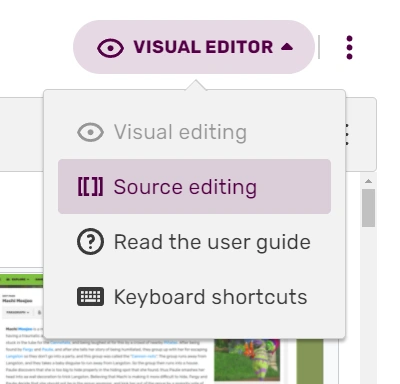

How to switch to source mode and make your code look cleaner.
Source mode is designed to handle complex HTML codes on an article, allowing to reduce the amount of unwanted code that is sometimes automatically added. Source mode is the best way to edit if you are using templates, or HTML tags such as <span>, <p>, and <div>.
Here are some useful tips:
- When you see
 in the edit area of visual mode, it refers to a template.
 - When you see
 over content in the edit area of visual mode, it contains code that is not supported or too complex for the visual editor to handle. In source mode, you will see this content in full.
 - When you see
 in the edit area of visual mode, it refers to a comment. In source mode, you will see this content as
 <!-- -->. - MediaWiki has a special language called wikitext to make editing easier. This language is supported in visual mode and will not break as easily as HTML.
- Some HTML tags like
<u>or<s>are supported in visual mode. - Templates have no visual editing available, and you can only edit them in source mode (except for the special Infobox Builder).
See also
@importhelp (CSS)- ImportJS help
importArticleshelp (JS)- Code cheatsheet
- List of CSS enhancements
- List of JavaScript enhancements