Bookmarks allows users to save, view, import, and export bookmarks across different sessions. This system supports bookmarking functionality directly on any wiki page. The Bookmarks module is designed to persist bookmarks even after the browser is closed.
Installation
To enable the Bookmarks functionality, follow these steps to include the necessary scripts and styles:
MediaWiki:Custom-Bookmarks.json if customization is required.
Configuration
The Bookmarks system allows wiki administrators to customize it. Configuration can be adjusted through MediaWiki:Custom-Bookmarks.json.
Customize Options
Several options are available to control the appearance and functionality of bookmarks:
| Option | Type | Description | Default Value |
|---|---|---|---|
MarkedIcon
|
String | This icon appears on pages that are bookmarked. | ★ |
UnmarkedIcon
|
String | The icon displayed on unmarked pages. | ☆ |
NoBookmarksMessage
|
String | The message shown on the bookmarks page if no bookmarks are saved. | You currently have no bookmarks. Please bookmark at least one page. |
ShowIconsIn
|
Array | The canonical namespaces to display the icons on, a list of canonical namespaces can be found here. Keep in mind that the namespace 0 (or article namespace) is defined as "page" in the source code. So if you want your bookmark icons to appear only on articles, either leave it blank or put ["page"]
|
["page"] |
To modify these properties, edit MediaWiki:Custom-Bookmarks.json directly.
Additionally, the options must be in valid JSON format. Example:
{
"UnmarkedIcon": "☆",
"MarkedIcon": "★",
"NoBookmarksMessage": "You currently have no bookmarks. Please bookmark at least one page.",
"ShowIconsIn": ["page"]
}
Extensions
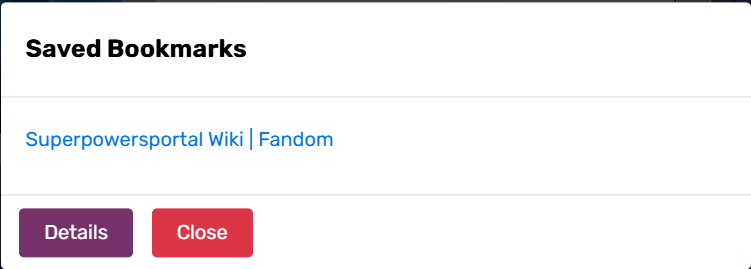
As of now, the Bookmarks system includes one extension, modal.js, which enhances user accessibility by providing an overlay that lists all bookmarks directly on any page.
The modal.js extension provides users with an efficient way to access their saved bookmarks without needing to navigate to a dedicated bookmarks page. Key features of modal.js include:
- Quick Access with Shortcut: To open the modal, users can press CTRL + M, allowing instant access to saved bookmarks from any wiki page.
- Close and Details Buttons: The modal includes a close button to hide the overlay and a details button that links directly to the bookmarks page for additional actions.
Extension Installation
To add the modal functionality, include the following code:
This will enable the modal overlay.User Guide
Here’s a quick guide for users on how to use the Bookmarks module:
- Adding a Bookmark: To bookmark the current page, look for the "Unmarked" icon next to the page title. Clicking this icon will add the page to your saved bookmarks.
- Removing a Bookmark: Click the "Marked" icon next to the page title to unmark a page. This will remove the page from your saved bookmarks. Alternatively, you can navigate to the bookmarks page and click the "remove" button beside the page you wish to unmark.
- Viewing Bookmarks: You can view all saved bookmarks by opening the bookmarks page or using the modal.
- Importing and Exporting Bookmarks: To back up or share bookmarks, use the import/export options available on the bookmarks page. When exporting, bookmarks are saved into a JSON file, which can be imported later through the bookmarks page.